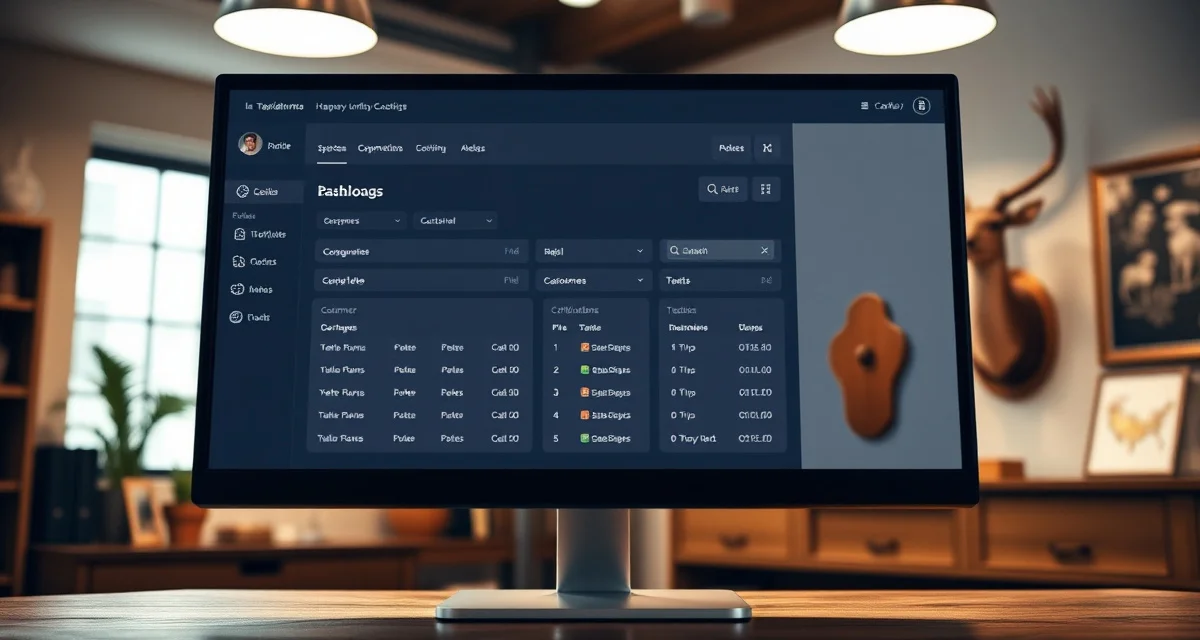
Taxidermy Customer Portal Setup Guide: From Zero to Live in One Hour
Most taxidermists overestimate setup complexity. The portal is live in under an hour, and same-day portal activation means you can set it up the morning of your first deer intake and give the first customer their tracking link before they leave the parking lot.
This step-by-step guide covers everything from MountChief account creation to sending your first tracking link.
TL;DR
- Update their stages over several days to simulate the intake-to-completion flow
- Step 2: Set Up Species Workflows (10 minutes)
- Standard deer workflow example:
- Step 3: Configure Notification Settings (5 minutes)
- Confirm the portal shows the correct information, your shop logo appears, and the welcome message is visible.
- Resend links on request: If a customer loses their link, resend from the job record in 10 seconds.
- You don't need technical skills or developer assistance.
- They do not see other customers' information, pricing details (unless you choose to show them), or any internal shop notes you've marked private.
What You'll Need Before You Start
- A MountChief account (if you don't have one, create it at mountchief.com, takes about 5 minutes)
- Your shop name and logo (optional but recommended for the portal header)
- Your standard deer mount timeline range (e.g., "9-12 months") for the portal's timeline display
- A test customer's phone number or email to verify the portal works before going live
That's it. No technical skills required. No developer needed.
Step 1: Configure Your Shop Profile (10 minutes)
After logging in, go to Shop Settings and complete:
Shop name: How it appears in the portal header and customer notifications
Contact information: Phone and email customers can use to reach you from the portal
Logo upload: A logo makes the portal look professional and branded. A simple square image works.
Portal welcome message: A short message displayed at the top of every customer's portal page. Example: "Thanks for choosing [Shop Name]. Your mount is in good hands. Track your progress below."
Save your settings.
Step 2: Set Up Species Workflows (10 minutes)
Species workflows define the production stages shown in the customer's portal. For each species you accept, set up the stages:
Standard deer workflow example:
- Intake Received
- Cape Prepped
- At Tannery
- Tannery Returned
- In Production
- Quality Check
- Complete - Ready for Pickup
You can customize stage names and add species-specific stages. Fish mounts might include "Color Reference Approved" as a customer-facing stage. Turkey mounts might include "Fan Drying."
The stages you define are what customers see in their portal. Clear, descriptive stage names reduce confusion and status calls better than vague labels.
Step 3: Configure Notification Settings (5 minutes)
Decide how customers receive portal access and stage updates:
Portal link delivery: SMS text (recommended) or email. Most hunters prefer text.
Stage update notifications: Enable automatic text or email when a job stage changes. This is the feature that converts passive portal access into proactive customer communication. When you update a job from "Cape Prepped" to "At Tannery," the customer receives a notification automatically.
Completion notification: Configure a completion message that includes a link to schedule pickup or contact you for the final balance.
Step 4: Set Up Your First Test Record (5 minutes)
Before going live with real customers, create a test intake record using your own information or a trusted friend's:
- Go to New Intake
- Select species (deer)
- Enter your test customer information
- Complete the intake form fields
- Send the portal link to your test phone number
Open the link on your phone. You should see the portal immediately, no login, no download. Confirm the portal shows the correct information, your shop logo appears, and the welcome message is visible.
If it looks good, you're ready for real customers.
Step 5: Send Your First Real Customer Their Portal Link (2 minutes per intake)
At intake, after finalizing the record:
- The portal link is automatically generated
- Enter the customer's phone number
- Tap "Send Portal Link"
- The customer receives a text with their unique link
That's the complete process from intake to portal activation.
What the Customer Sees
When the customer clicks their link:
- Your shop name and logo at the top
- A current status display showing their species and mount type
- A visual progress indicator showing completed and upcoming stages
- The current stage highlighted
- Estimated completion window based on your workflow settings
- Your contact information if they have a question
No login screen. No app download prompt. No account creation. Just their mount status, instantly.
After Setup: Managing the Portal Day to Day
The portal requires minimal ongoing maintenance:
Update job stages as they change: When a cape goes to the tannery, update the job stage. The customer gets notified. That's it.
Check portal activity occasionally: MountChief shows you which customers have viewed their portal and how recently. Customers checking frequently may be getting anxious, worth a proactive message.
Resend links on request: If a customer loses their link, resend from the job record in 10 seconds.
Testing Before Your First Deer Season
If you're setting up before deer season, give yourself a week of test operation:
- Create 3-5 test jobs for past customers or friends
- Update their stages over several days to simulate the intake-to-completion flow
- Ask a test customer to verify the portal on their phone (especially on Android, which sometimes renders differently than iPhone)
- Test the stage notification on your own phone
A week of dry-run testing means your first real deer season intake uses a system you've already verified works.
Frequently Asked Questions
How do I set up a taxidermy customer portal?
Create a MountChief account, complete your shop profile (name, logo, contact info), configure your species workflows with the production stages you want customers to see, enable automatic stage notifications, and create a test record to verify the portal works on your phone before using it with real customers. Total setup time is under an hour. You don't need technical skills or developer assistance. Same-day setup is realistic, taxidermists regularly set up the portal the morning of their first intake day and give the first customer their link before they leave.
What information do customers see in the portal after setup?
Customers see their species and mount type, a visual progress indicator showing all production stages with the current stage highlighted, an estimated completion window, your shop name and logo, and your contact information. They do not see other customers' information, pricing details (unless you choose to show them), or any internal shop notes you've marked private. The portal is designed to answer the one question customers want to know: "Where is my mount?" Everything in the portal serves that question.
How do I test my taxidermy portal before going live?
Create a test intake record using your own information or a trusted contact's. Send the portal link to your phone and open it. Verify the portal displays correctly, your logo appears, and the stage information is accurate. Then advance the test job through two or three stages and verify that the stage notifications arrive as expected. Check the portal on both iPhone and Android if possible. Test the link resend function to confirm it works from the job record. If everything looks correct, your portal is ready for real customers. The whole test process takes 10-15 minutes.
How does this apply to solo taxidermy shops?
The principles in this guide apply to solo shops just as they do to larger operations, though the scale differs. A single-person shop may have lower absolute volume but faces the same documentation, compliance, and customer communication requirements. The practical advice here scales down to any shop size.
What is the most common mistake taxidermists make with taxidermy customer portal setup guide?
The most common mistake is treating taxidermy customer portal setup guide as an afterthought rather than building it into the standard workflow from the start. Shops that encounter problems in this area typically did not establish clear processes before season, which means every situation becomes a one-off decision rather than a standard response.
Related Articles
- Is a Taxidermy Customer Portal Safe for Customer Privacy?
- How to Build a Customer Portal for Your Taxidermy Shop
- Taxidermy Customer Portal: Let Clients Track Their Own Mount
- Case Study: 94% Customer Portal Adoption in First Deer Season
Try These Free Tools
Put these insights into practice with our free calculators and planners:
Sources
- National Taxidermists Association (NTA)
- US Fish & Wildlife Service
- Small Business Administration (SBA)
Get Started with MountChief
Customer communication is one of the highest-leverage investments a taxidermist can make in their shop's reputation. MountChief's customer portal activates automatically at every intake and keeps hunters informed throughout the 8-14 month process without adding work to your day. Try MountChief to give your customers the transparency they want.